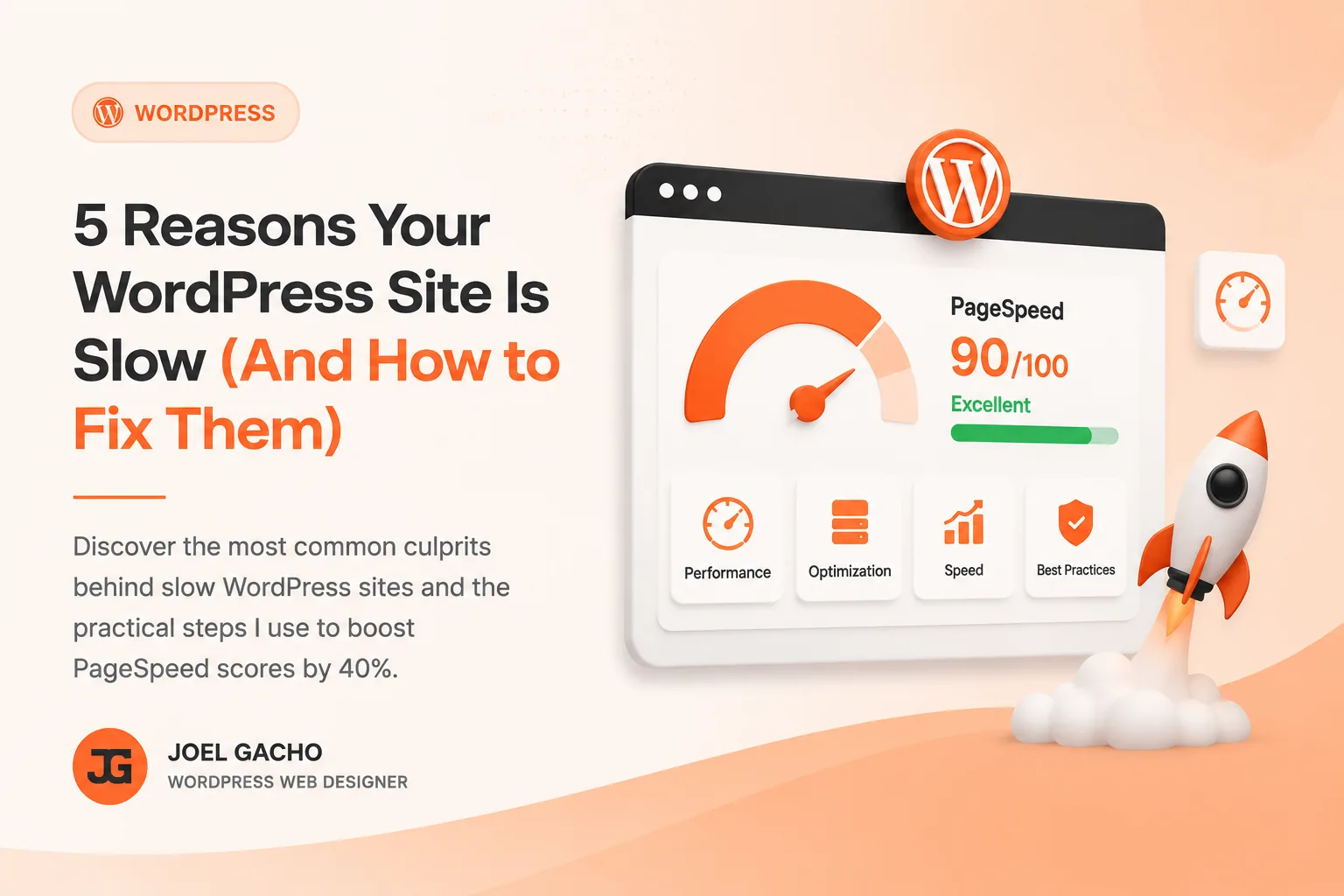
A slow website is one of the most damaging things that can happen to your online presence. Google uses page speed as a ranking signal alongside the rest of your on-page SEO fundamentals, and visitors bounce within 3 seconds if a page doesn't load. After optimising 50+ WordPress sites, I keep seeing the same five culprits — and every single one is fixable.
1. Unoptimised Images
Images are almost always the number one offender. A single uncompressed hero image can be 4–8 MB — enough to tank your PageSpeed score on its own. Most WordPress sites ship images exactly as they're uploaded: full-resolution, wrong format, zero compression.
Convert to WebP
WebP images are 25–35% smaller than JPEG with the same visual quality. Use a plugin like ShortPixel or Imagify to bulk-convert on upload.
Add lazy loading
Add loading="lazy" to every <img> below the fold. WordPress 5.5+ does this automatically, but always verify your theme isn't overriding it.
Set correct dimensions
Never upload a 4000×3000px image when it displays at 800×600px. Resize before upload, or use Elementor's built-in image size controls.
2. Too Many Plugins
Plugins are WordPress's superpower — and its greatest weakness. Every active plugin adds PHP execution time, database queries, and often its own CSS/JS files loaded on every page. I routinely audit sites running 40+ plugins with 10 doing effectively the same job.
Audit your plugins quarterly. Deactivate anything you haven't used in 60 days. Consolidate overlapping functionality — one good SEO plugin (Rank Math) beats three mediocre ones.
3. No Caching Setup
Without caching, WordPress generates every page dynamically from scratch — running PHP, querying the database, and assembling HTML on every single request. For a 200-visitor-per-day site, that's 200 full page builds per day.
Proper caching serves pre-built HTML files directly, reducing server response time from 800ms+ to under 100ms.
"Caching is the single highest-ROI optimisation on any WordPress site. It's free, takes 10 minutes to set up, and cuts TTFB by 60–80% immediately."
My go-to stack: WP Rocket for page caching + Cloudflare free tier for CDN and edge caching. If budget is tight, W3 Total Cache or LiteSpeed Cache (on compatible hosts) are solid free alternatives.
4. Wrong Hosting Plan
Shared hosting at $3/month puts your site on a server alongside thousands of others. When a neighbouring site gets a traffic spike, your response times suffer — this is called the "noisy neighbour" problem. No amount of optimisation fully overcomes a slow server.
- Budget tier — SiteGround Shared or Hostinger: fine for simple brochure sites with under 500 visits/day
- Mid tier — Cloudways (DigitalOcean 2GB): excellent price-performance for growing businesses
- Performance tier — Kinsta or WP Engine: managed WordPress hosting with server-level caching, ideal for high-traffic or WooCommerce
Most of my client sites that were "unfixably slow" simply needed to move from shared hosting to a $12/month Cloudways droplet. The difference is night and day.
5. Render-Blocking Resources
CSS and JavaScript files in the <head> block the browser from rendering anything until they fully download and parse. Elementor, WooCommerce, and most themes load a stack of scripts this way by default.
Defer non-critical JS
Add defer or async to scripts that don't need to run before the page renders. WP Rocket handles this automatically.
Minify CSS and JS
Remove whitespace and comments from stylesheets and scripts. Most caching plugins include a minification option — enable it and test thoroughly.
Load Elementor CSS inline
In Elementor → Settings → Advanced, enable "Improved Asset Loading" and set CSS Print Method to "Internal Embedding" for pages with few elements.
Quick Wins Recap
- Install ShortPixel and bulk-convert all images to WebP today
- Audit your plugins — aim for under 20 active
- Install WP Rocket and enable page caching + minification
- Add Cloudflare free tier in front of your site
- Run a speed test at PageSpeed Insights before and after — track your score